When Volrix adds or updates MCP tools, your AI app may still have an older tool list. If a new feature is missing or a tool is no longer recognized, refresh the connection and try it in a new conversation.
A refresh reloads the available tools. Signing in again is only needed when the app reports an authentication problem. Your saved Volrix strategies and backtest reports stay in your Volrix account.
Choose your app
| App | Where to refresh |
|---|---|
| Claude Desktop | Volrix connector menu → Refresh tools list |
| Claude Code in the terminal | /mcp → your Volrix server → Reconnect |
| Codex in the terminal | Exit and reopen Codex, then check /mcp |
| ChatGPT | Volrix connection settings → Refresh tools |
The normal Volrix MCP endpoint is:
https://mcp.volrix.ai/mcp
Keep your existing connection for a normal update. You do not need to add a second Volrix server.
1. Claude Desktop
For Volrix added as a remote connector:
- Open Claude's Settings and choose Connectors under Customize. You can also open your Claude connectors in a browser using the same Claude account.
- Select Yours, then open Volrix.
- Click the three-dot menu beside Disconnect.
- Select Refresh tools list.
- After it finishes, start a new chat and make sure Volrix is enabled for that conversation.
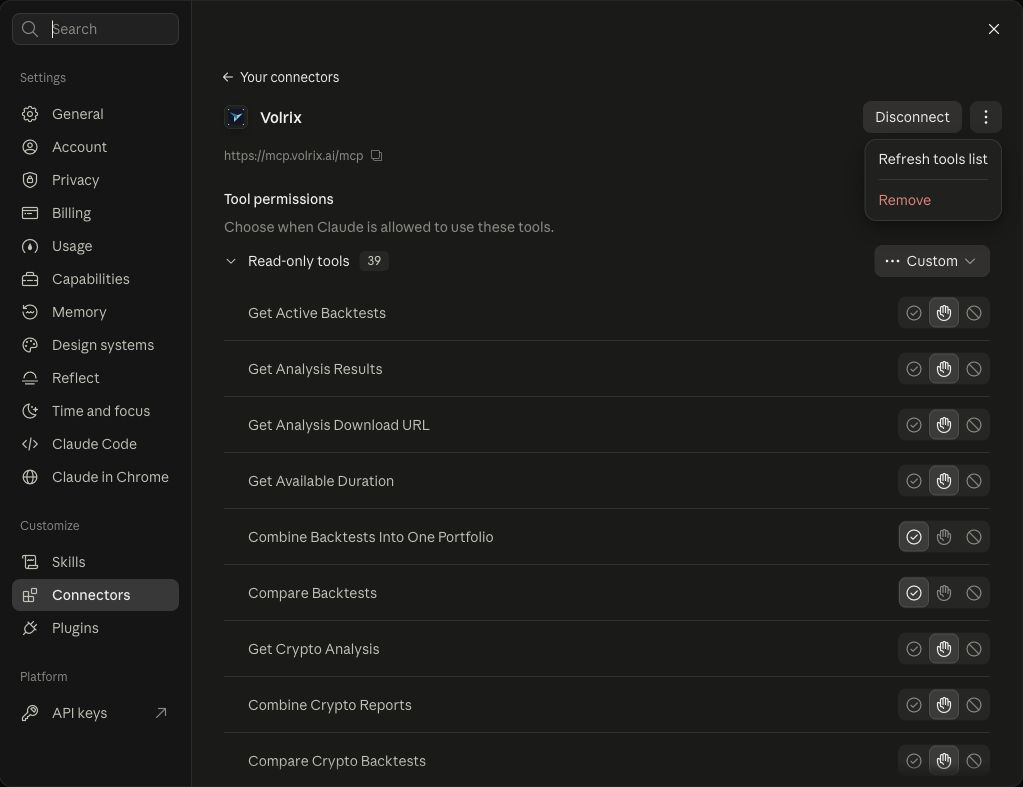
Actual Volrix settings captured in Claude web. Remote connectors are managed through your Claude account and are also available in Claude Desktop. Anthropic's remote connector guide.
If Claude asks you to reconnect or authenticate, follow its sign-in flow for your existing Volrix account.
Using the older local setup? If you added Volrix through claude_desktop_config.json or a local mcp-remote process, fully quit Claude Desktop and reopen it. On macOS, use Claude → Quit Claude or Cmd+Q. Closing the window alone may leave the app running. This is a separate setup from the remote connector above. Claude Desktop local MCP guide.
2. Claude Code in the terminal
- Finish or pause the current task. Inside Claude Code, type
/mcp. - Select your Volrix server and press Enter. Its name may be
volrix,Volrix, or the name you chose during setup. - Choose Reconnect and wait for the connection to return.
- Open its details again to check the tools. Use a fresh conversation if the old chat still refers to retired tools.
If the server initially says cached, the first reconnect can connect it while retaining the discovery cache. Once connected, choose Reconnect again to discard that cache and fetch the current catalog. This behavior is documented in Claude Code's MCP guide.
If the status says Needs authentication, use the authentication option in /mcp. Reconnecting the server and signing in to your account are separate actions.
3. Codex in the terminal
For a manual reload, restart the CLI session and inspect the tools it loads:
- Finish the current task and leave the Codex session with
/quit. - From your normal terminal prompt, in the same project folder, start Codex again with
codex. - Wait for MCP startup to finish. Inside the new session, type
/mcp. - Find your Volrix server and check its available tools.
/mcpdisplays the connection and tools; it is not a universal refresh command.
To find its configured name, run codex mcp list from a normal shell. If Codex reports expired or missing OAuth authorization, run codex mcp login volrix, replacing volrix with that name, then reopen Codex.
The supported commands and configuration are described in OpenAI's Codex MCP documentation. /quit is documented in the CLI command reference.
4. ChatGPT app
For a custom or developer-mode Volrix MCP connection:
- Open ChatGPT Plugins in a browser using the same account as your ChatGPT app.
- Open your installed Volrix or Volrix MCP connection. Check that its URL is
https://mcp.volrix.ai/mcp. - Open the three-dot menu and choose Manage. You can also reach this page through Settings → Plugins → Volrix.
- Under Manage app, select Refresh tools.
- Follow any metadata-review prompt, then start a new conversation with Volrix selected.
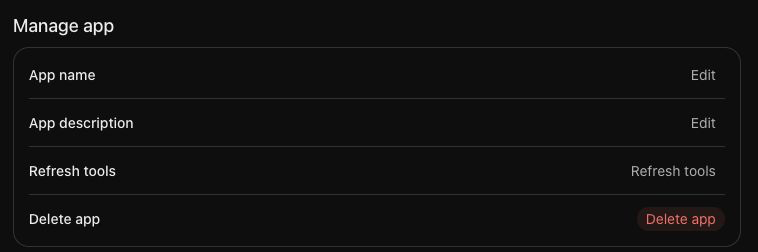
Actual ChatGPT settings for the Volrix MCP connection, captured in the browser.
Some versions label this area Apps or Connectors. If your desktop or mobile app does not show the refresh control, use ChatGPT in a browser, then return to the app.
Installed from the public directory? The developer-mode refresh button may not be present. Published plugins use ChatGPT's review process for tool updates. Start a new conversation to check the available tools; reconnect only if the app reports an authorization problem. OpenAI's connection and metadata-refresh guide.
Check that the refresh worked
Open the app's tool list where available, then try a small read-only request in a new conversation:
Use Volrix to check the available backtest date range for NIFTY.
Check that the response actually calls a Volrix tool. A reply saying “I'm connected” without a tool call does not verify the connection.
If it still fails, check the server URL, finish any requested sign-in, and confirm you are using the right account and workspace. Tool permissions can also prevent a tool from appearing or running. If the problem continues, contact Volrix with the app name and the error message.
Last checked: October 1, 2026. Screens and labels can vary by app version.